
How to Give Copilot Studio Agents Full Teams Channel Thread Context
How to Give Copilot Studio Agents Full Teams Channel Thread Context
When you deploy a Copilot Studio agent into a Teams channel, you’d expect it to just… work. Users @mention it, it reads the conversation, it responds intelligently. Simple, right?
Not quite. There are several undocumented (or poorly documented) hurdles between “I published my agent” and “my agent can actually read and respond to channel threads.” By default, the agent only sees the message where it was @mentioned — not the rest of the thread it is being asked about.
This post walks through every gotcha I hit and the solution I built to give the agent full thread awareness.
What we’re building
A Copilot Studio agent that lives in a Teams channel and can:
- Be @mentioned in any thread
- Read the entire thread (original post + all replies) — not just the message it was tagged in
- Respond intelligently with full context
Step 1: Getting the agent into a Teams channel
Publishing your agent in Copilot Studio makes it available for personal 1:1 chat only. To get it into a Teams channel, you need to enable some settings that are easy to miss.
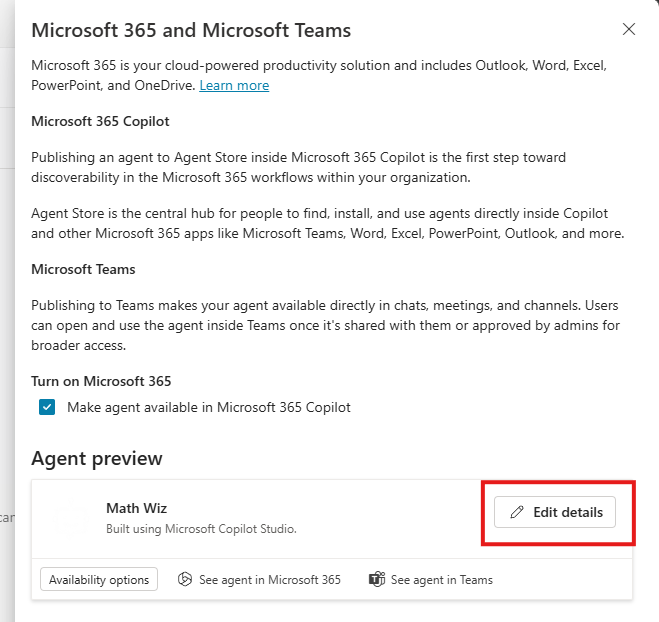
In the publish settings, click Edit details on the Agent preview:
Then enable these two checkboxes in the Teams settings:
- ✅ Users can add this agent to a team
- ✅ Use this agent for group and meeting chats
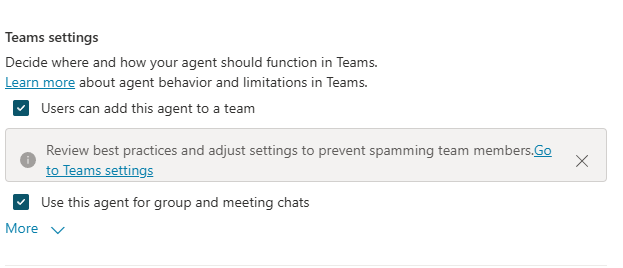
This is documented here, but unless you’re reading the docs carefully, you’ll be stuck wondering why you can’t add your published agent to a channel.
You also need to publish to the org
Even after enabling those checkboxes, I found that @mentioning the agent in a channel did nothing — it simply didn’t respond. The fix was to publish the agent to the organisation, not just the standard “Publish” action. Whether this is a bug or by design, I’m not sure, but it’s another step that isn’t immediately obvious.
The problem: agents can’t see the thread
Once the agent was live in a channel and responding to @mentions, I hit the real limitation. The agent can only see the single message where it was @mentioned. It has no access to the thread, previous messages, or attachments.
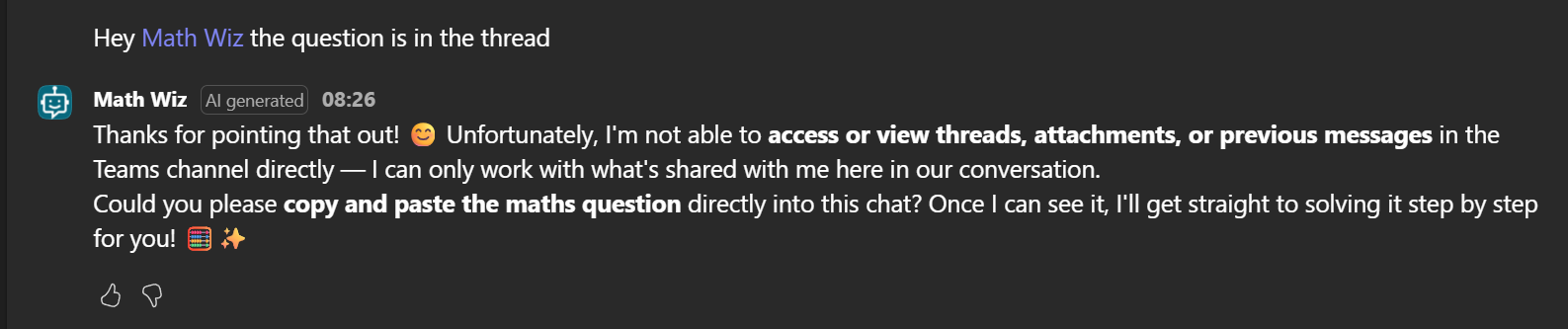
For any real-world use case — “answer the question in the thread,” “summarise this discussion,” “help with the problem above” — this is a dealbreaker. We need to build around it.
Finding the right IDs
To fetch thread context via Microsoft Graph or the Teams connector, we need three things:
- Team ID
- Channel ID
- Message ID (the parent/root message of the thread)
System.Activity gives us most of what we need
Exploring System.Activity in Copilot Studio reveals the channel data:
{
  "ChannelData": {
    "channel": { "id": "19:3335008feaf2461db1e3166bfc594eb6@thread.tacv2" },
    "team": {
      "aadGroupId": "3ad1a17b-60aa-4227-9cf7-df14874f53dc"
    }
  }
}
We get the Team ID (aadGroupId) and Channel ID — but no Message ID. Without it, we can’t retrieve the replies.
The message ID is hiding in System.Conversation
After some digging, I found it buried in System.Conversation.Id:
{
  "Conversation": {
    "Id": "19:3335008feaf2461db1e3166bfc594eb6@thread.tacv2;messageid=1781020682216"
  }
}
The message ID (1781020682216) is concatenated after ;messageid= in the Conversation ID string. You need to parse/split this to extract it.
In Copilot Studio/Power Fx terms, the shape is essentially:
Last(Split(System.Conversation.Id, ";messageid=")).Value
Why it’s here and not in System.Activity is anyone’s guess — but at least it’s there.
The solution: a topic + Agent Flow
At a high level, the pattern looks like this:
- Teams channel message triggers the Copilot Studio topic
- The topic checks whether the message came from a channel
- It extracts Team ID, Channel ID, and Message ID
- An Agent Flow retrieves the parent post and replies
- The flow returns a trimmed “who said what” JSON payload
- A Generative Answer node uses that payload to produce the response
Topic: route channel messages for enrichment
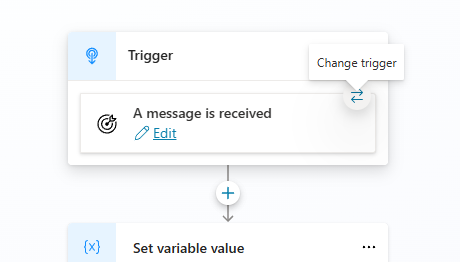
I created a topic triggered on “A message is received” that checks whether the message came from a Teams channel (by inspecting System.Activity.ChannelData). If it’s a normal 1:1 message, it passes through to the orchestrator unchanged. If it’s a channel message, it extracts the IDs and calls an Agent Flow to fetch the thread.
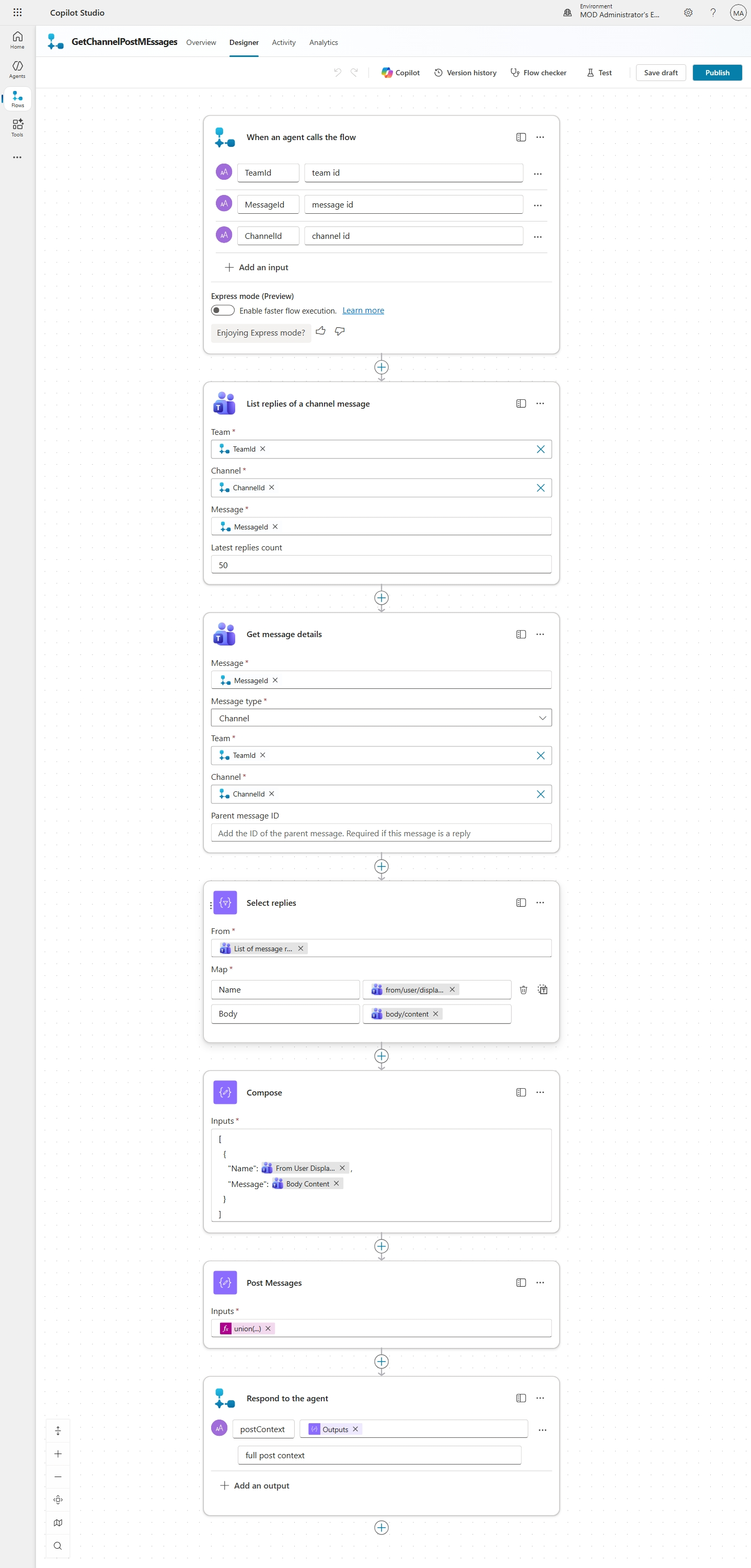
Agent Flow: GetChannelPostMessages
The flow takes three inputs (TeamId, MessageId, ChannelId) and fetches the full thread using the Teams connector. In practice, this is the low-code route to the same Teams message data you would otherwise retrieve through Microsoft Graph:
The steps:
- “List replies of a channel message” — fetches up to 50 replies using the Teams connector
- “Get message details” — retrieves the original parent post
- “Select” — strips the API response down to just display name and message body
- “Compose” — builds a clean JSON structure:
{"Name": "...", "Message": "..."} - “Union” — combines the original post with all replies
- “Respond to the agent” — returns
postContextwith description “full post context”
The key design decision: only return what the LLM actually needs (who said what), not the raw API payload full of metadata noise.
Final critical step: feed the output to a Generative Answer node
One more gotcha — after the flow returns the thread context, the orchestrator won’t automatically use it. If you just leave the output in a variable, nothing happens. You need to explicitly pass it into a Generative Answer node so the LLM actually reasons over the thread content.
Permissions and caveats
This pattern gets you much closer to real Teams channel awareness, but it is not magic thread omniscience. Annoying, yes. Unexpected, no.
- The Teams connector connection used by the Agent Flow needs access to the team and channel messages you want to retrieve.
- The flow shown here fetches up to 50 replies.
- Attachments are not included in the simplified context.
- Teams message bodies may contain HTML, so you may want to clean or normalize them before passing them to the model.
- Private or shared channels may require different permissions or behave differently depending on your tenant configuration.
- Only pass the fields the model actually needs. In this case, that means sender display name and message body — not the full raw payload.
That last point matters for both quality and governance. The less irrelevant metadata you feed into the prompt, the less noise the model has to reason over, and the easier it is to stay aligned with your tenant’s data handling expectations.
The result
With all of this wired up, the agent can now read entire threads and respond with full context:
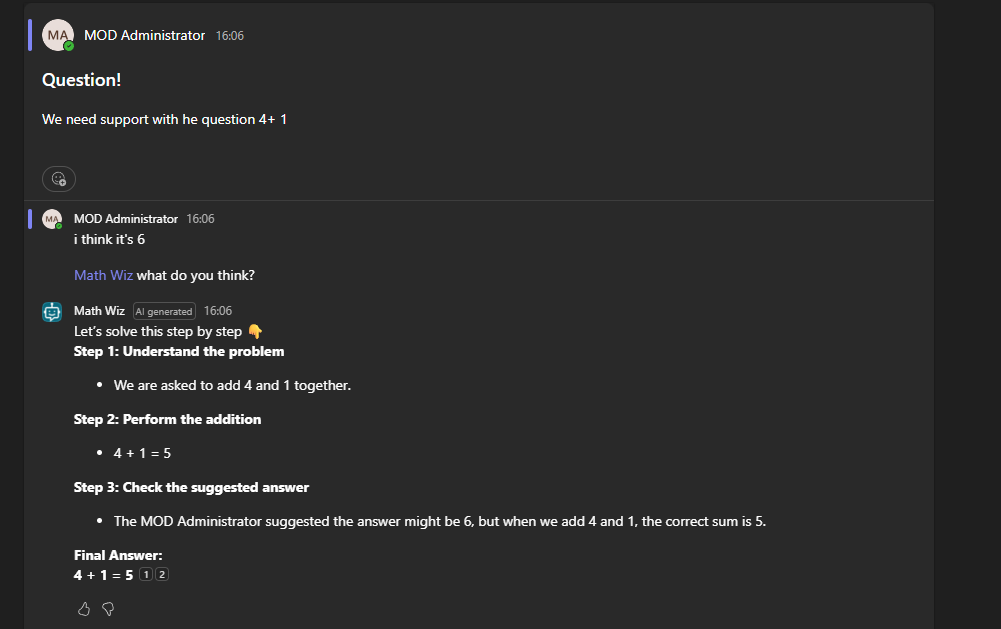
In this example:
- The original post asks “4 + 1”
- A reply says “I think it’s 6”
- The agent is @mentioned with “what do you think?”
- It reads the full thread, works through the problem step by step, and corrects the wrong answer
From “I can’t see your thread” to “actually, your colleague is wrong — here’s the right answer.” That’s the journey.
Summary
| Challenge | Solution |
|---|---|
| Agent can’t be added to a channel | Enable hidden checkboxes in Teams settings via Edit details |
| Agent doesn’t respond to @mentions | Publish to the organisation |
| Agent can only see the @mention message | Build an Agent Flow to fetch the thread via Teams message data |
| Message ID not in System.Activity | Parse it from System.Conversation.Id |
| Orchestrator ignores flow output | Pass thread context to a Generative Answer node |
The out-of-the-box experience for Copilot Studio agents in Teams channels is limited, but with a bit of plumbing — a topic for routing, a flow for fetching, and a Generative Answer node for reasoning — you can build something genuinely useful.